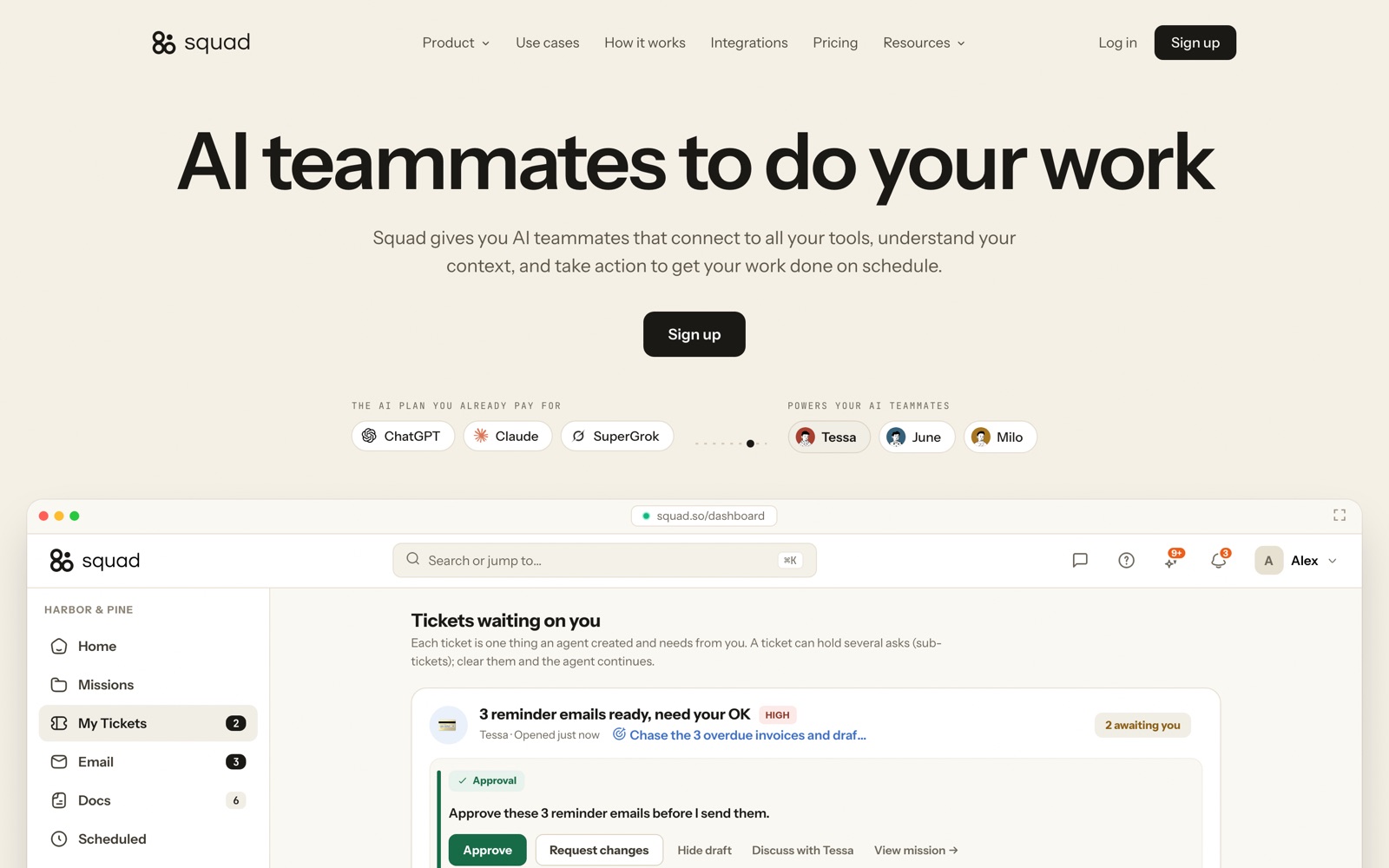
The short version of this Squad review: it’s worth trying if you run a small business and keep losing hours to the same recurring chores: chasing invoices, triaging an inbox, sending a Monday report, answering the same twenty support questions. You describe the job in plain English, an AI teammate does it on a schedule inside your own tools, and anything that would reach a customer waits for your approval. The catch is the price. The $99 a month doesn’t include the AI itself, so with the ChatGPT plan Squad recommends you’re looking at roughly $199 to $299 a month, and the whole thing depends on AI subscriptions whose rules you don’t control.
We reviewed Squad from its public site, pricing page, use-case pages and comparison articles as they stood on September 29, 2026. We haven’t run it on a paid account yet, so treat the capability claims below as Squad’s own, which we’ll confirm or correct once we have. Where Squad makes a claim we can’t check, we say so; where its own pages reveal a weakness, we say that too.
Squad at a glance
| Squad | |
|---|---|
| What it is | Hosted AI teammates that run recurring jobs across your tools |
| Price | $99/month, plus your own AI subscription |
| Free plan | None; 7-day money-back guarantee instead |
| AI models | Bring your own: ChatGPT, Claude, Gemini, SuperGrok, Llama, Copilot, OpenRouter and others |
| Integrations | 70+, including Gmail, Slack, HubSpot, Stripe, Notion, Google Sheets, GitHub and Shopify |
| Teammates | Unlimited on the one plan |
| Coding needed | None; you describe jobs in plain English |
| Data | Isolated workspace on its own computer; not used for training, per Squad |
| Formerly | MissionControlHQ (renamed August 2026) |
| Built by | Bhanu Teja Pachipulusu, Sai Dheeraj Pachipulusu and Thibault Louis-Lucas |
For the quick reference (features, setup steps, FAQ), see the Squad tool page. It sits in the same corner of the market as the AI tools we review, and it overlaps with automation tools like n8n and the other Zapier alternatives. One naming warning before going further. Search for “Squad AI” and you’ll mostly find meetsquad.ai, an unrelated product-strategy tool for product managers. This review covers squad.so.
How Squad works
You start by talking to what Squad calls your AI Chief of Staff. It asks about your business, and from that conversation it proposes a squad: a handful of named AI teammates, each with a role, the tools it may touch and a schedule. The demo workspace on Squad’s homepage has Tessa on billing, June on the inbox, Milo on meetings and content, and Atlas on hiring, which gives a fair sense of the granularity. You’re meant to hire a teammate per job rather than one assistant for everything.
Squad’s FAQ explains why, and it’s the most useful idea in the product: “One agent with every tool and no owner gets vague fast.” Each teammate holds one job, one schedule and one set of access, so when something goes wrong you know which teammate did it and which instructions to fix. It’s the same logic we apply to software stacks in one tool per job, applied to AI workers.
You don’t write code. According to Squad, you describe the job the way you would to a new hire, and the Chief of Staff writes the process down as a document you can edit. That’s a meaningful difference from building a flow in a visual automation tool: you’re editing instructions in English rather than wiring boxes together, which is easier to start and harder to debug when a teammate misreads you.
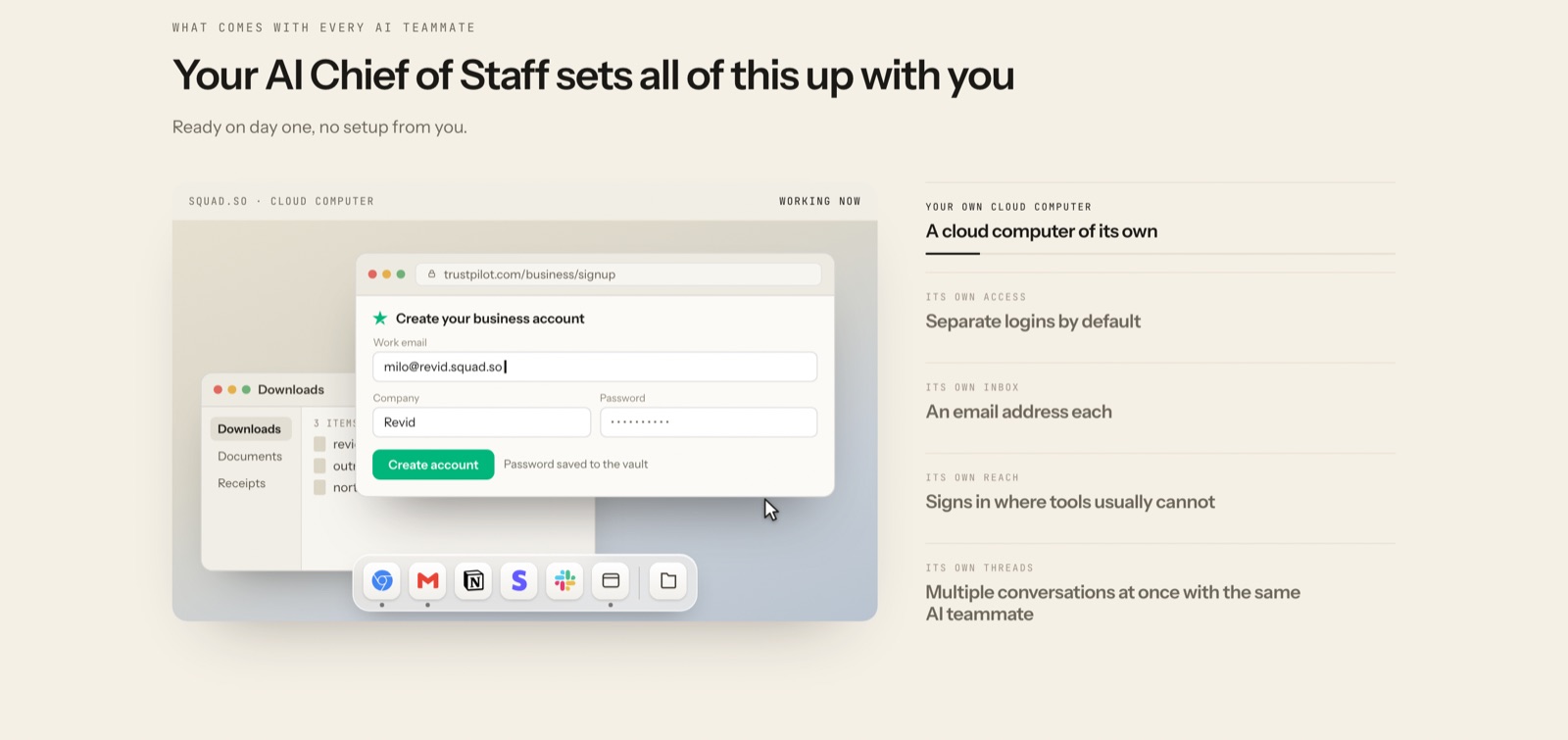
Each teammate gets its own browser profile on a dedicated cloud computer, and optionally its own email address. That’s the part that separates Squad from a chatbot with plugins: a teammate can sign in to a website that has no integration, fill in a form, download a file and carry on. Squad also says a teammate can learn a job “by watching you once”, which is the claim we most want to test.
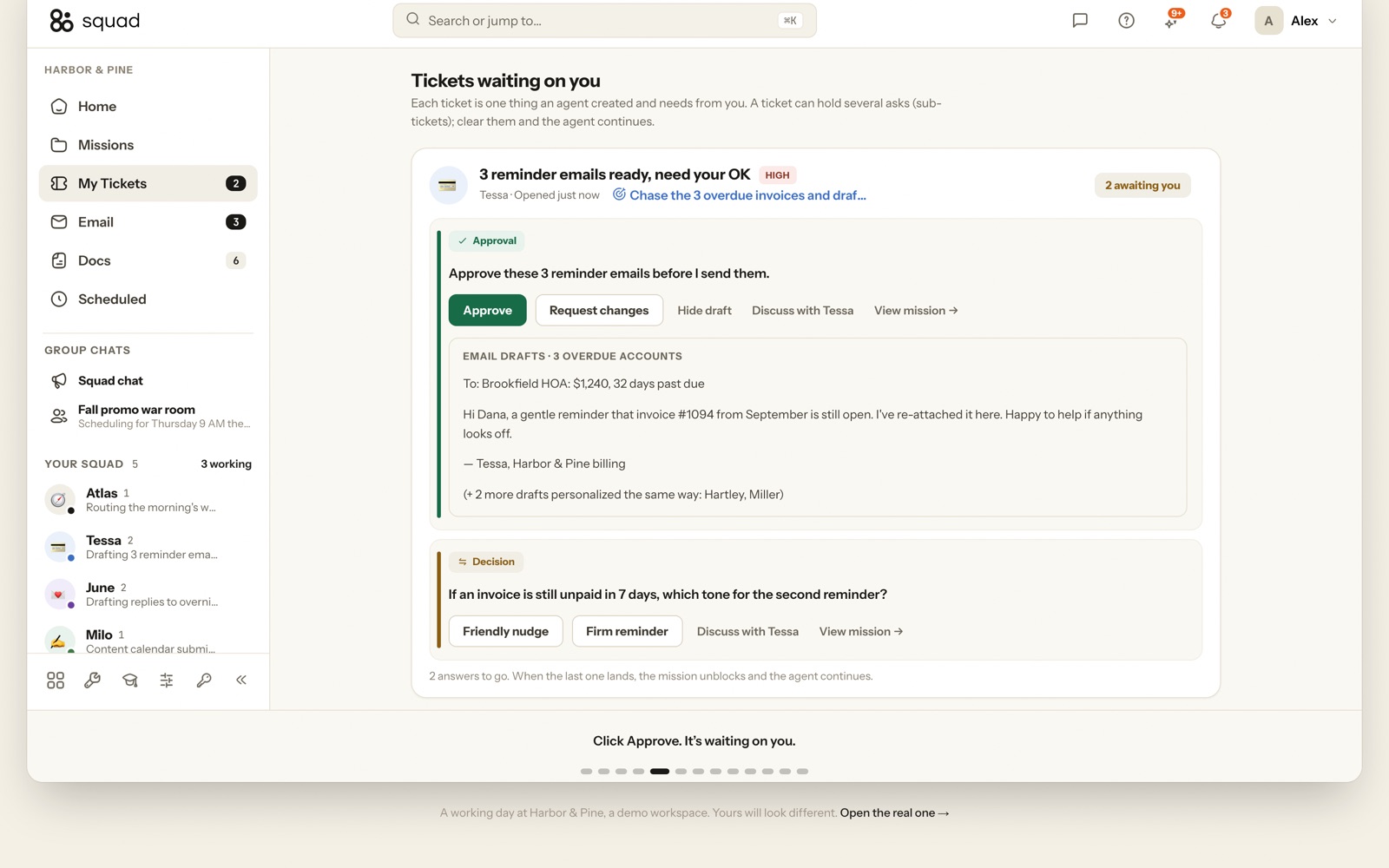
Work shows up as tickets. When a teammate needs a decision or an approval, it opens one in your queue, and you answer with a tap: approve, request changes, or pick between options it lays out. Your team and even a client can see the mission board, threads and run log in the shared workspace, and Squad lets you hand a client a read-only share link, which matters if you run an agency and want to show the work.
Squad also says it builds “a shared context graph and memory from every conversation and every app you use”, so a one-line request is enough because the squad already knows who you mean and what you decided last time. It’s a strong claim and a hard one to verify from the outside; memory is exactly the part of AI agents that tends to be patchy, so it’s the second thing we’d test after “watching you once”.
What a day with Squad looks like
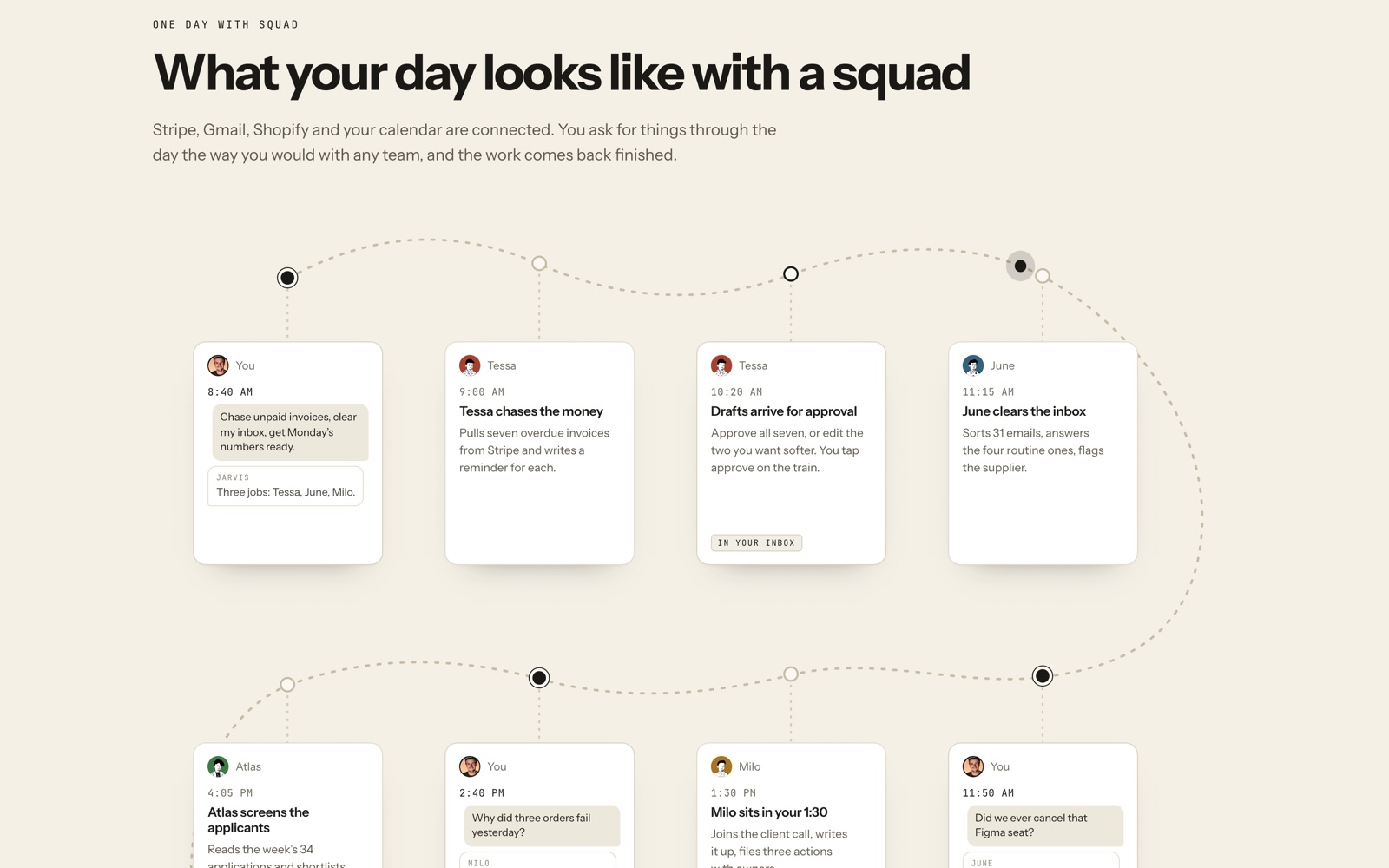
Squad’s homepage walks through a demo day for a small business with Stripe, Gmail, Shopify and a calendar connected. It’s a demo, not a customer’s log, but it shows how the pieces are meant to fit together:
- 8:40 AM. You ask the squad to chase unpaid invoices, clear your inbox and get Monday’s numbers ready.
- 9:00 AM. Tessa pulls seven overdue invoices from Stripe and writes a reminder for each.
- 10:20 AM. The drafts arrive for approval; you approve them or soften the two you want gentler.
- 11:15 AM. June sorts 31 emails, answers the four routine ones and flags a supplier.
- 1:30 PM. Milo joins your client call, writes it up and files three actions with owners.
- 4:05 PM. Atlas screens 34 job applications and shortlists four.
- 6:50 PM. June builds Monday’s report: revenue, refunds and ad spend.
Squad’s tally for the day is 12 jobs finished by four teammates, with two taps of approval from you. Your real day won’t be that tidy, but the shape is honest about one thing: the human’s job becomes asking and approving, and the approvals are the part you can’t skip.
The jobs Squad is built for
Squad publishes ten example jobs, from cold outreach and Shopify order issues to release QA and competitor watch. Four of them show the model best, and they’re the ones we’d expect most small teams to start with.
Chasing overdue invoices
Squad’s invoice-chaser example runs every weekday at 9:00 AM. The teammate reads Stripe for overdue invoices and drafts one reminder per customer in the voice you’ve set. The drafts land in your queue as approval tickets, and once you approve, it sends them from its own inbox. It follows up on day 3 with a friendly nudge and on day 10 with a firmer note; at day 20 it hands you a choice card on how to escalate.
You set the rules in chat (“Be warm. Wait 5 days. Flag anything over $2,000 for me.”), and you can let reminders under a threshold, say $500, go out without asking. That threshold is the whole game with tools like this. Start with everything held for approval, then loosen it one job at a time as you trust the drafts.
Inbox triage
The inbox-triage teammate runs at 7:00 AM on weekdays. It answers routine mail, archives noise and flags anything sensitive, and Squad says it only answers “from sources it can cite”: your docs, your past replies and the squad’s company and contacts files. You set allow lists, block lists and a daily send cap, and anything irreversible still waits for you. The morning brief lands in the dashboard or on Telegram, with suggested replies for the flagged threads.
This is the job where the approval settings matter most. An inbox teammate that answers from your past replies will repeat your past mistakes too, so read its first week of sent mail before you raise the send cap.
The Monday report
The weekly-report teammate builds the same one-page report every Monday at 7:00 AM: revenue, refunds and ad spend, pulled from Stripe, Google Ads and your store. Its connections are read-only; Squad says it “never writes to your money tools”. The first report arrives as a draft you edit, and the teammate keeps the approved layout for every week after. It’s the lowest-risk job on the list, which makes it the best first job if you’re nervous about letting an AI act on your accounts.
Customer support
The support teammate works all day, answering routine questions from your help docs and past tickets and escalating the rest with the thread, the customer’s history and a drafted reply. You draw the escalation line once: refunds, bugs and angry customers go to a human. Squad’s own pitch is that “most support volume is the same twenty questions”, which matches what most support teams already know. If that’s you, compare it with a dedicated help desk before you decide; our must-have tools for support teams covers the usual stack.
Bring your own AI, and what that really costs
Squad doesn’t resell model access. You connect subscriptions you already pay for, and the work runs on them. There are no per-task charges from Squad, and you can give each teammate a different model: Squad’s FAQ suggests cheap open models like GLM, Kimi or Qwen for routine work and the expensive ones for judgment.
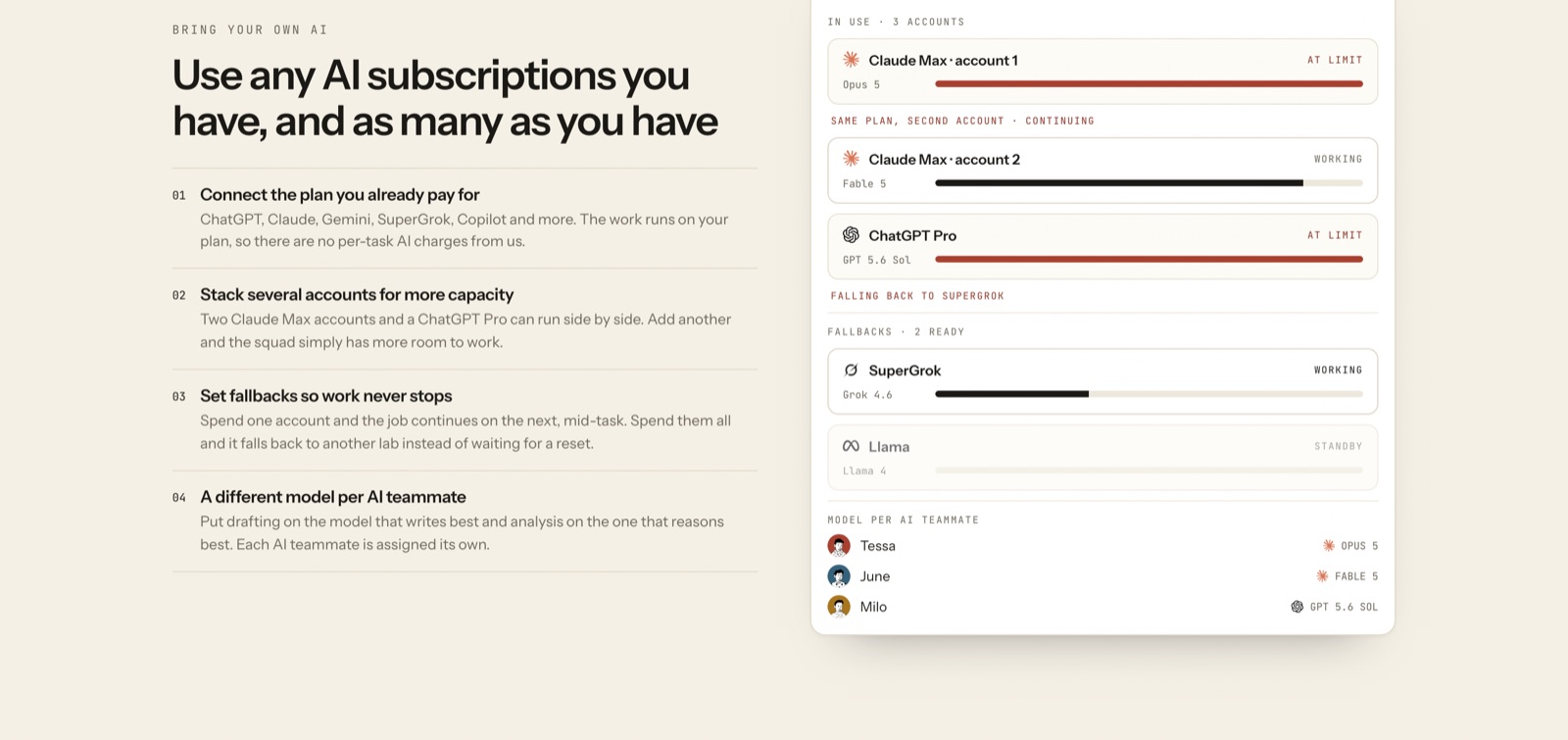
The flip side is that consumer AI plans have usage limits, and a squad running all day will hit them. Squad’s answer is stacking: connect several accounts and set fallbacks, so when one plan runs out mid-task the job moves to the next. It works, but it also tells you something about real usage. If you need two premium AI subscriptions to keep your squad busy, your all-in bill is closer to $300 or $400 a month than to $99.
Budget like this:
- Squad plan: $99/month
- Your AI plan: $100 to $200/month for the ChatGPT tier Squad recommends
- Extra inboxes: $10/month per teammate that needs its own address
- Research tools: 1,000 credits a month free, then $5 per 5,000, which Squad says it resells at what the data providers charge it
Here’s how that adds up for three setups we think are typical, using only Squad’s published prices:
| Setup | Squad | AI plan | Inboxes | Monthly total |
|---|---|---|---|---|
| Solo founder, 2 teammates, one ChatGPT plan, no inboxes | $99 | $100–200 | $0 | $199–299 |
| Small business, 4 teammates, one AI plan, 2 inboxes | $99 | $100–200 | $20 | $219–319 |
| Busy squad, 6 teammates, two AI plans stacked, 4 inboxes | $99 | $200–400 | $40 | $339–539 |
Squad’s own comparison with OpenClaw puts the total at “$199-299/mo all-in” with one ChatGPT plan, which matches the first row. The same thing happens with most SaaS: the sticker price is one line of the bill, as we cover in where SaaS free plans run out.
Squad also frames the price against hiring: its Hermes comparison says a hosted squad costs “roughly 93-95% less” than a junior operator at about $4,000 a month. That’s Squad’s framing, not ours. A person and a squad aren’t interchangeable; the fair question is how many hours of your own week the squad hands back, and you’ll only know that after the money-back week.
Guardrails: approvals, scopes and the vault
Letting software act on your accounts is the real risk here, and Squad gives you more controls than most tools in this category:
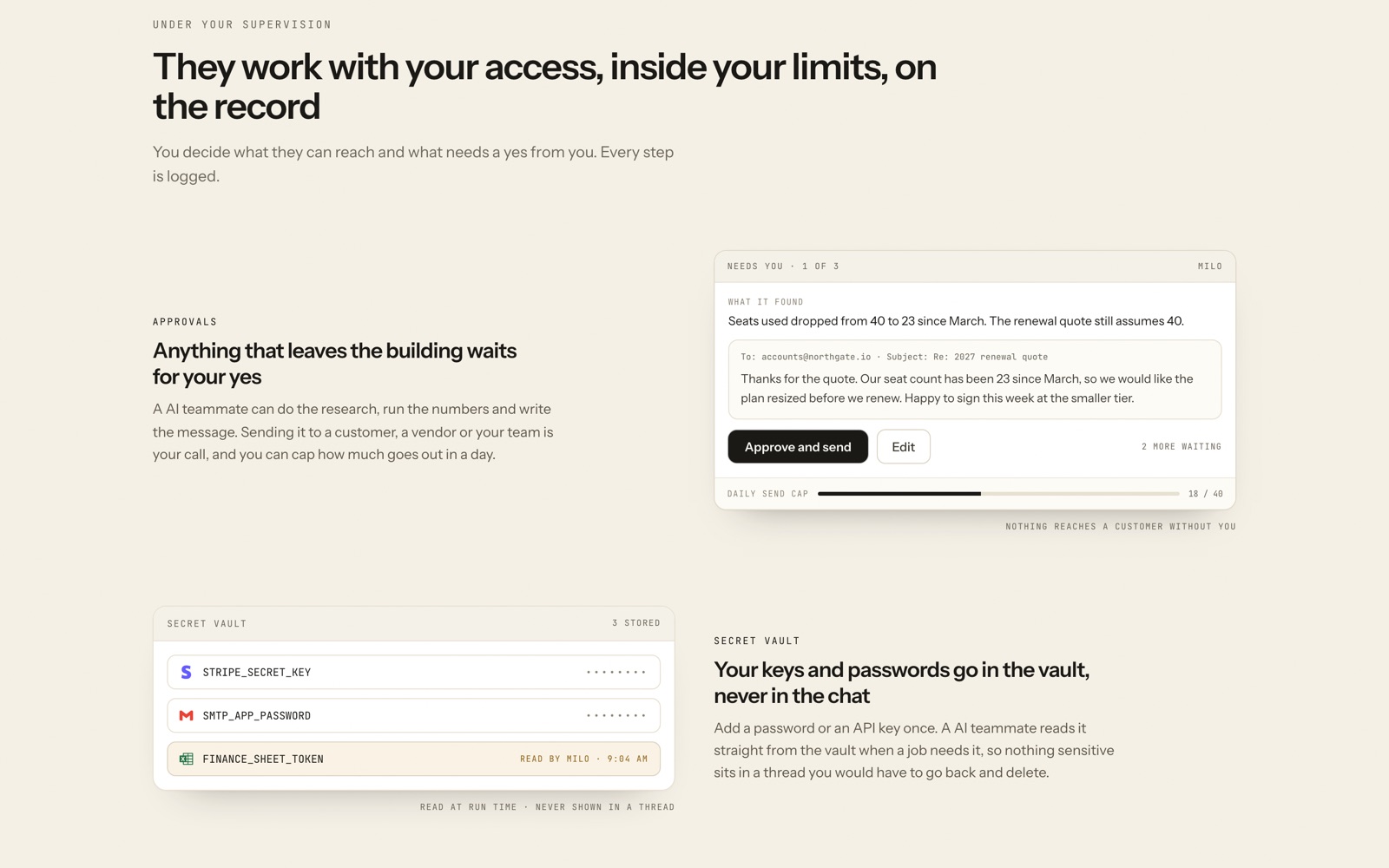
- Anything that leaves the building (an email to a customer, a message to a vendor) waits for your yes, and you can cap how many go out per day.
- Each teammate gets its own access to each connection, read-only or read and write. Logins are separate by default, so the teammate handling marketing can’t reach your books.
- Passwords and API keys live in a vault on your squad’s own computer that teammates read at run time, so they never appear in a chat thread.
- Every run is logged end to end.
On data, Squad says each customer gets a dedicated, isolated workspace on its own computer, that your data goes only to the AI provider you picked, and that it never trains anything on your data. If your data can’t leave your own servers at all, Squad’s FAQ says self-hosted and isolated deployments are “handled case by case”, so it’s a conversation rather than a checkbox.
None of that removes the need to think about what you connect. A teammate with read-and-write access to Stripe and your inbox can do real damage with a bad instruction, approvals or not, so give each one the narrowest scope that gets its job done.
What Squad’s customers say, and what they don’t
Squad publishes 28 customer quotes on its homepage, and they’re worth reading closely rather than skimming, because a few of them say more than the marketing does. They’re curated by Squad, so they lean positive; the useful part is in the details.
The praise clusters around two things. First, setup speed: Ankush Gupta, CEO of TBP Media, says his AI Chief of Staff built a task-tracking and nudge system for his 17-person team, with Google Sheets and a Google Chat bot, in one session. Second, the bring-your-own-AI model: one customer, Jay Johnson, says a huge reason he signed up was to use his $200-a-month Claude Max plan instead of paying for Anthropic’s API.
The details that matter for a buyer are less loud. Karl Hackel, who runs a SaaS, likes the product but says he needs “better resilience” before running his whole business on it. Another customer’s quote opens with “It’s working again!” And one published quote is an exit email from Dan Thompson, CEO of Sterling Gap, who called it “phenomenal” but left, citing “them blocking Claude Max” and a new system that made more financial sense.
We read that last one as the most important line on the page. Squad’s economics rest on running your work through consumer AI subscriptions, and those subscriptions belong to other companies with their own rules. If a provider restricts how its plan can be used by third-party tools, your squad’s capacity, or its cost, can change overnight. Squad’s multi-provider fallbacks are the right answer to that risk; just make sure you actually set them up.
Pricing
There’s one plan. $99 a month, billed monthly, cancel from the dashboard, with a 7-day money-back guarantee: put the squad on real tasks, and if it doesn’t fit, email Squad within 7 days for a full refund. It includes unlimited teammates, all 70+ integrations, the cloud computer, the ticket queue and approvals, the vault, the shared document library and the full run log. If you cancel, you can export your missions, docs and run history.
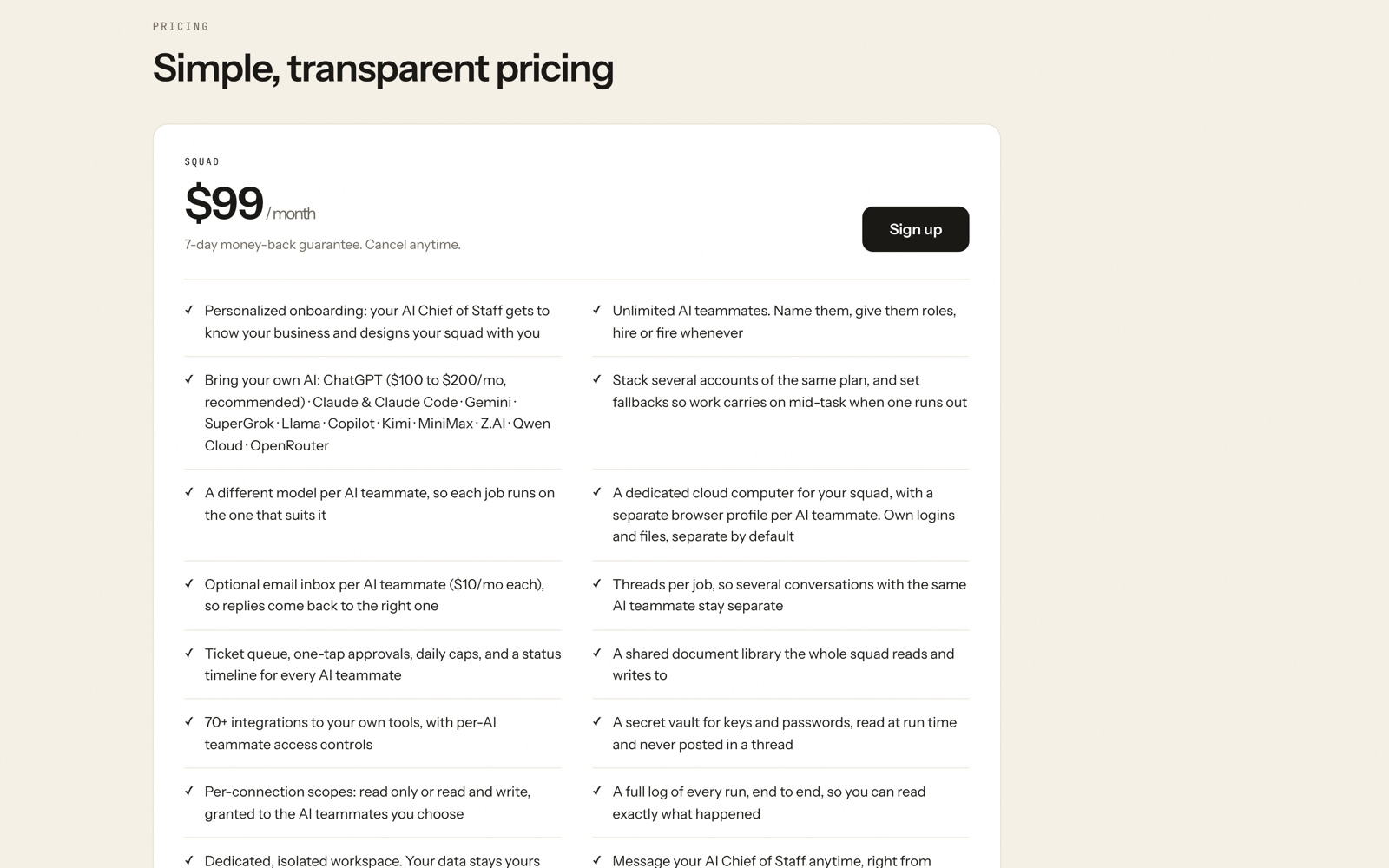
For a solo founder the flat price is simple. For a team it’s better than per-seat pricing, since you pay the same $99 whether one person approves tickets or five do; the AI subscriptions are what grow.
How to use the money-back week
Seven days is short, so plan it before you pay. Here’s the order we’d follow, based on how Squad describes its setup:
- Day 1: pick one job, not five. The Monday report or invoice chasing are the safest starts, because they read from your tools more than they write to them.
- Day 1: set fallbacks straight away. Connect your AI plan and a second provider, so a usage limit on day three doesn’t look like the product failing.
- Days 2–4: approve everything. Keep every outbound action behind approval, read the drafts, and correct the teammate in chat when it’s off.
- Days 5–6: add a second job only if the first one’s drafts need little editing.
- Day 7: decide on numbers. Count the hours you didn’t spend on those jobs, compare them with the all-in monthly cost from the table above, and ask for the refund if the maths doesn’t work.
Questions to ask Squad before you pay
Squad’s plan includes messaging with the founders from the dashboard, and its testimonials suggest people use it. That’s an advantage of a young company, so use it before the money-back clock starts. These are the questions we’d send, and why each one matters:
- What happens to a running job if my AI provider changes its terms? The fallback feature answers part of it; you want to know what the squad does mid-task and whether you’re told.
- Which of my jobs will need a second AI account? Describe your three biggest jobs and ask for an honest estimate. It’s the difference between the first and last rows of the cost table above.
- Can a teammate use a site with no integration, behind my login? That’s the cloud-computer promise. Ask about sites with two-factor sign-in, which are the usual sticking point for browser automation.
- What exactly does a client see on a share link? If you run an agency, check that runs, threads and documents can be scoped per client before you send one.
- What does an export contain? Squad says missions, docs and run history are yours to export. Ask for the format, so you know the process documents your Chief of Staff wrote can move with you.
If the answers are vague, that’s an answer too. A team that’s this close to its customers should be able to reply to all five in a day.
The catch
- The real price is two bills. Squad is $99; the AI it runs on is separate and usually costs as much again or more.
- It rests on other companies’ AI plans. One of Squad’s own published customer notes is an exit over a provider “blocking Claude Max”. Set fallbacks.
- It’s young. Squad was MissionControlHQ until August 2026, and we found very few independent reviews. Its testimonials are real names but hand-picked, and two of them mention reliability.
- You don’t own the infrastructure. Squad says so itself: compared with running an open-source agent on your own server, the infrastructure is “managed rather than owned”. That’s the right trade for most small businesses and the wrong one if your data can’t leave your servers, unless Squad agrees a self-hosted setup with you.
- Plain-English jobs cut both ways. Easy to set up, harder to debug than a visual workflow when a teammate misreads an instruction.
Squad alternatives
Lindy is the closest mainstream alternative and bundles the AI into the price (Lindy pricing): Plus is $29.99 per user a month with 3,000 credits, Pro $99.99 with 15,000, Max $199.99 with 35,000. It’s cheaper to start and easier to predict, though you pay per user and by credit rather than a flat fee.
n8n suits you if you’d rather build the workflow yourself. It’s a visual automation tool you can self-host, with AI steps inside the flow, and more work to set up than telling a Chief of Staff what you need. The upside is that every step is visible, so a broken flow is easy to find.
OpenClaw, the open-source agent runtime, is the do-it-yourself route: Squad’s own figures put a self-hosted setup at $5 to $25 a month in server costs, with no shared task board, approvals queue or cost tracking unless you build them.
Hermes Agent, from Nous Research, is the other open-source option. Squad’s Hermes comparison describes it as the closest thing to a squad in open source, with a real multi-agent task queue, but single-host by design and with cost tracking out of scope; self-hosting runs $5 to $80 a month. Squad’s summary of the difference is fair: “Same idea, opposite deployment philosophy.” It’s also worth knowing that Squad publishes that comparison and says so on the page.
| Option | Starts at | AI included? | Best for |
|---|---|---|---|
| Squad | $99/month + your AI plan | No, bring your own | Small teams that want named teammates with approvals |
| Lindy | $29.99/user/month | Yes, credit-metered | Predictable per-user pricing |
| n8n | Free to self-host | No | Teams that want to build and see every step |
| OpenClaw | $5–25/month (server) | No | One personal agent you run yourself |
| Hermes Agent | $5–80/month (server) | No | Technical teams that want a self-hosted multi-agent queue |
Who should use Squad
Try it if you’re a founder or a small team with recurring back-office work spread across Gmail, Stripe, a CRM and a spreadsheet, you already pay for a strong AI plan, and you’d rather approve drafts than write them. Agencies get extra value from the read-only client share links, and support teams answering the same questions all day are exactly the case Squad’s support teammate is built for.
Skip it if you’d be buying an AI plan just to use Squad and your budget is tight (Lindy’s bundled pricing will cost less), if your data has to stay on your own servers and you don’t want to negotiate a custom setup, or if your repetitive work is a simple trigger-and-action flow that a tool like n8n handles for free.
If you’re weighing Squad against the rest of your stack, give it one job and one job only, the way we describe in one tool per job. For everything else a small team needs, see the must-have tools for founders or, if you work alone, the must-have tools for freelancers.

 ChatGPT
 Claude
 Perplexity
 Grok
Grok